Preferences
The preferences let you change how GDevelop looks and behaves. They apply to the editor itself, not to a specific project: whatever project you open, you keep the same theme, the same layouts and the same keyboard shortcuts.
Opening the preferences
From the start page: the Preferences button, at the bottom of the menu on the left.
On the desktop version: also from the menu bar, File → Preferences (on macOS, GDevelop → Preferences).
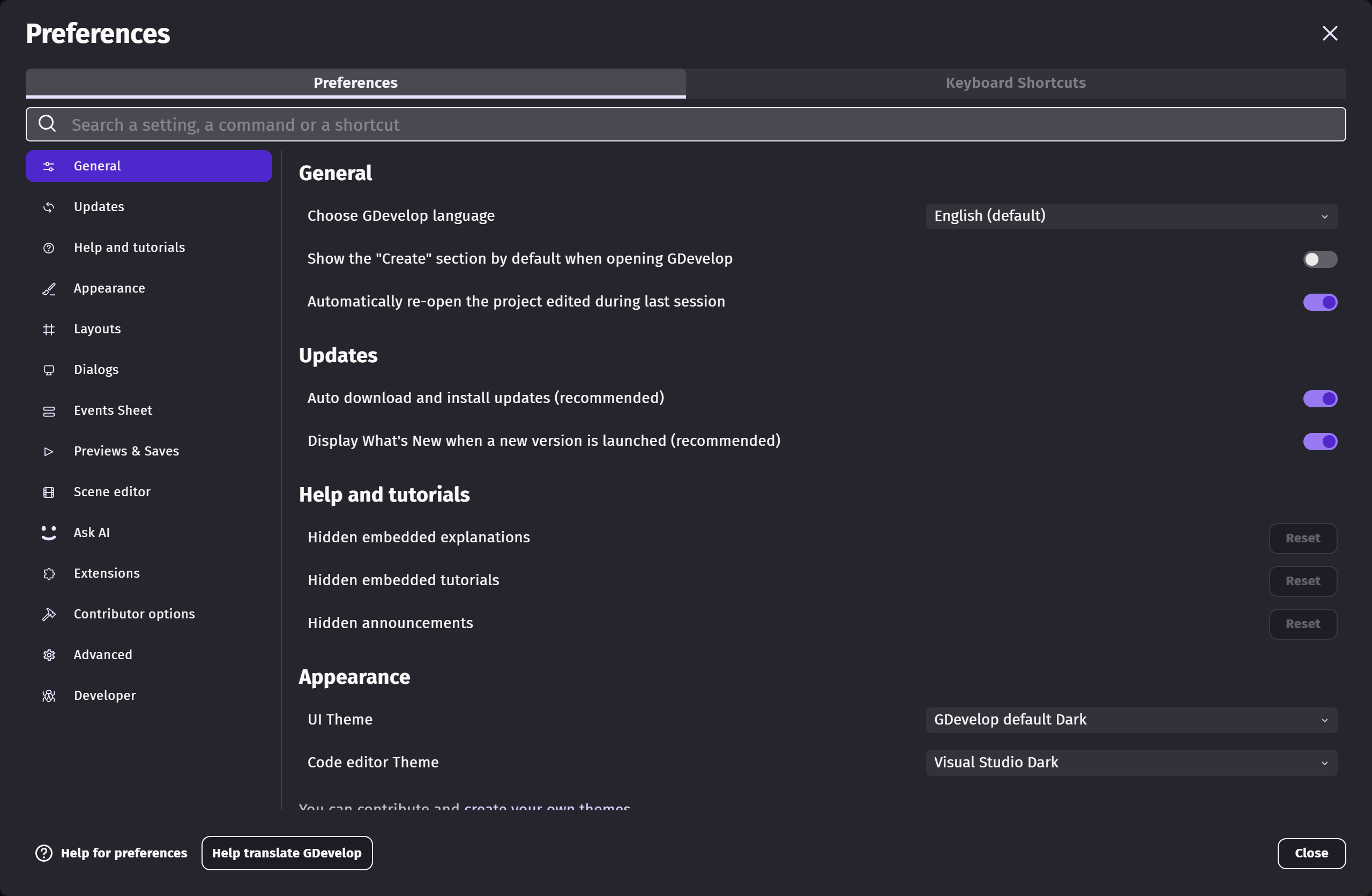
The window is split in two tabs:
- Preferences, where every setting is grouped in sections listed on the left.
- Keyboard shortcuts, where you can change the shortcut of any command.
The search field at the top searches through both tabs at once: type a few words of what you are looking for (for example theme, autosave or tile) and only the matching settings and shortcuts are displayed. Searching for the name of a section (for example appearance or tilemap) displays everything it contains.
Some settings are only available on the desktop version, because they concern things that only exist there (the preview window, the folders on your computer, the automatic updates...). They are simply not displayed on the web app.
Changing the theme
The Appearance section holds two independent themes:
- the UI theme, used by the whole editor,
- the code editor theme, used by the JavaScript code blocks in the events sheets.
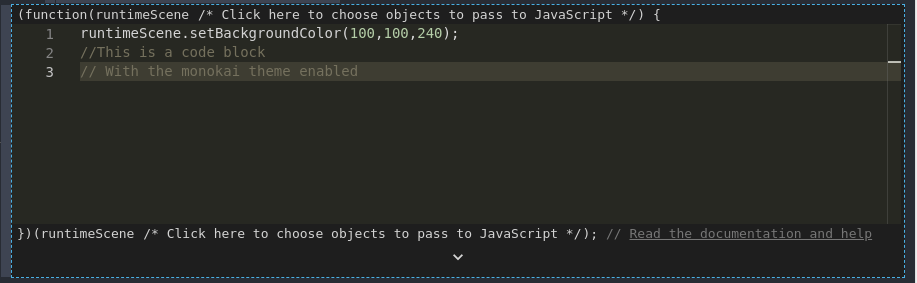
There are multiple themes to choose from, and you can even create your own. See how you can make one.
Restoring the layout of the editors
The Layouts section remembers how you arranged the panels of the scene editor, the debugger, the resource editor and the extension editor. If you moved or closed a panel and want to go back to the original arrangement, use the reset button of the corresponding layout: the change is applied the next time the editor is opened.
Dialogs and hints
The Dialogs section controls what happens when you click the backdrop, the faded area outside of a window. Depending on the setting, the click is ignored, or the edits made in the window are cancelled or applied. It also controls what GDevelop does when you add a resource (an image, a sound, a 3D model...) that is stored outside of the project folder.
The Help and tutorials section is where the hints, embedded tutorials and announcements that you dismissed can be brought back: everything you chose to hide is counted there, and can be displayed again in one click.
Events sheet, previews and scene editor
The Events Sheet section changes how the events are displayed and edited: object thumbnails, assignment operators (+= instead of add), indentation size, warnings about deprecated actions and conditions.
The Previews & Saves section gathers everything happening when you launch a preview: saving the project beforehand, opening the diagnostic report, taking a screenshot for the game dashboard, and, on the desktop version, how the preview window itself behaves.
The Scene editor section lets you display the objects in 3D and show profiling information while editing a scene.
Keyboard shortcuts
Open the Keyboard shortcuts tab to see every command of the editor, grouped by area, with the shortcut currently assigned to it. Click a shortcut to record a new one, and use the reset button to go back to the default. If two commands end up with the same shortcut, a warning tells you which other command it clashes with.
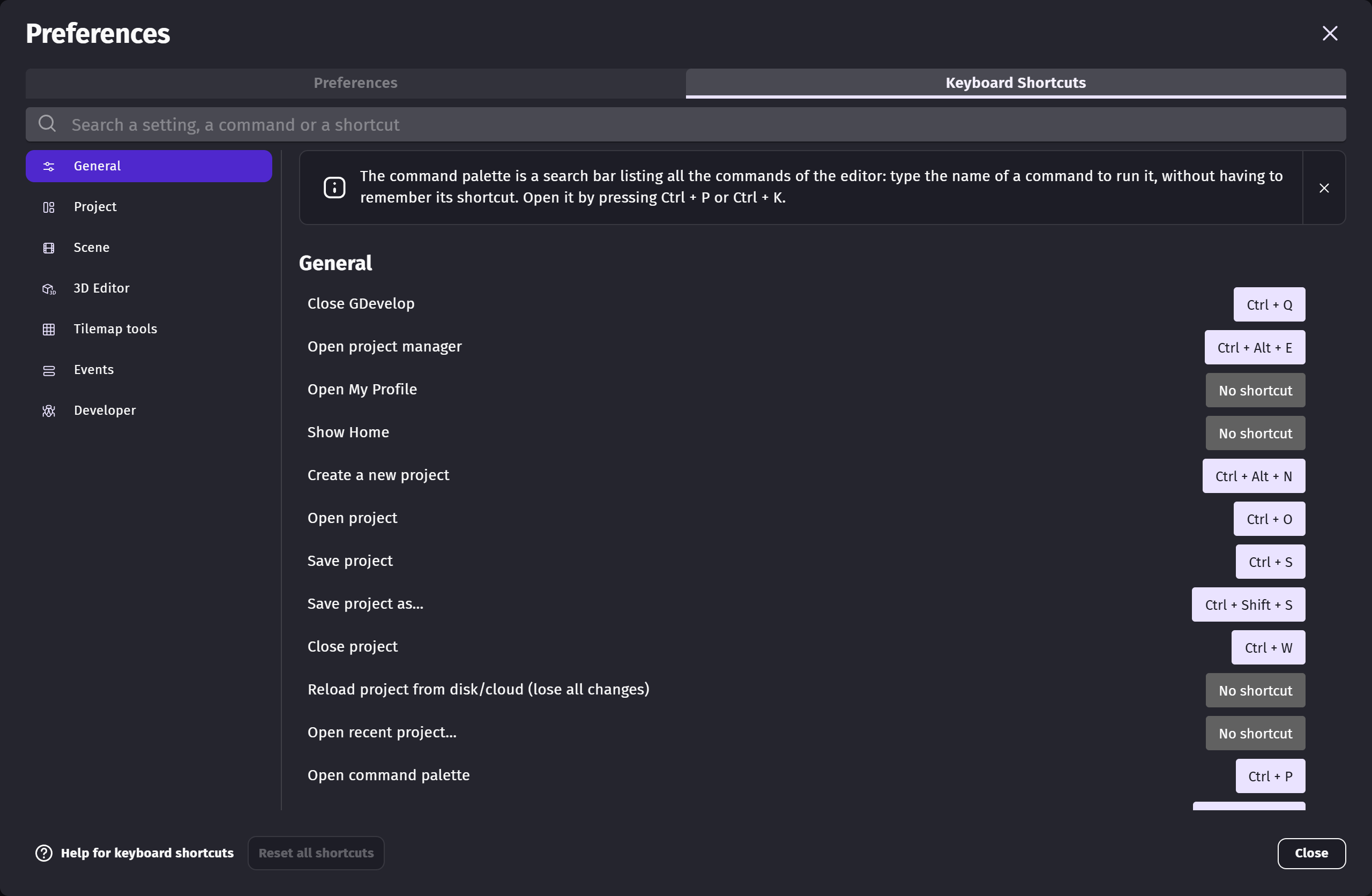
Most of these commands can also be launched by name from the command palette, without any shortcut. See command palette and shortcuts.
Changing language
The language of the editor is chosen in two places, which change the same setting:
- the language button at the top right of the start page, showing the code of the current language,
- the General section of the preferences, opened with the Preferences button at the bottom of the menu on the left.
Both buttons are framed in red below:
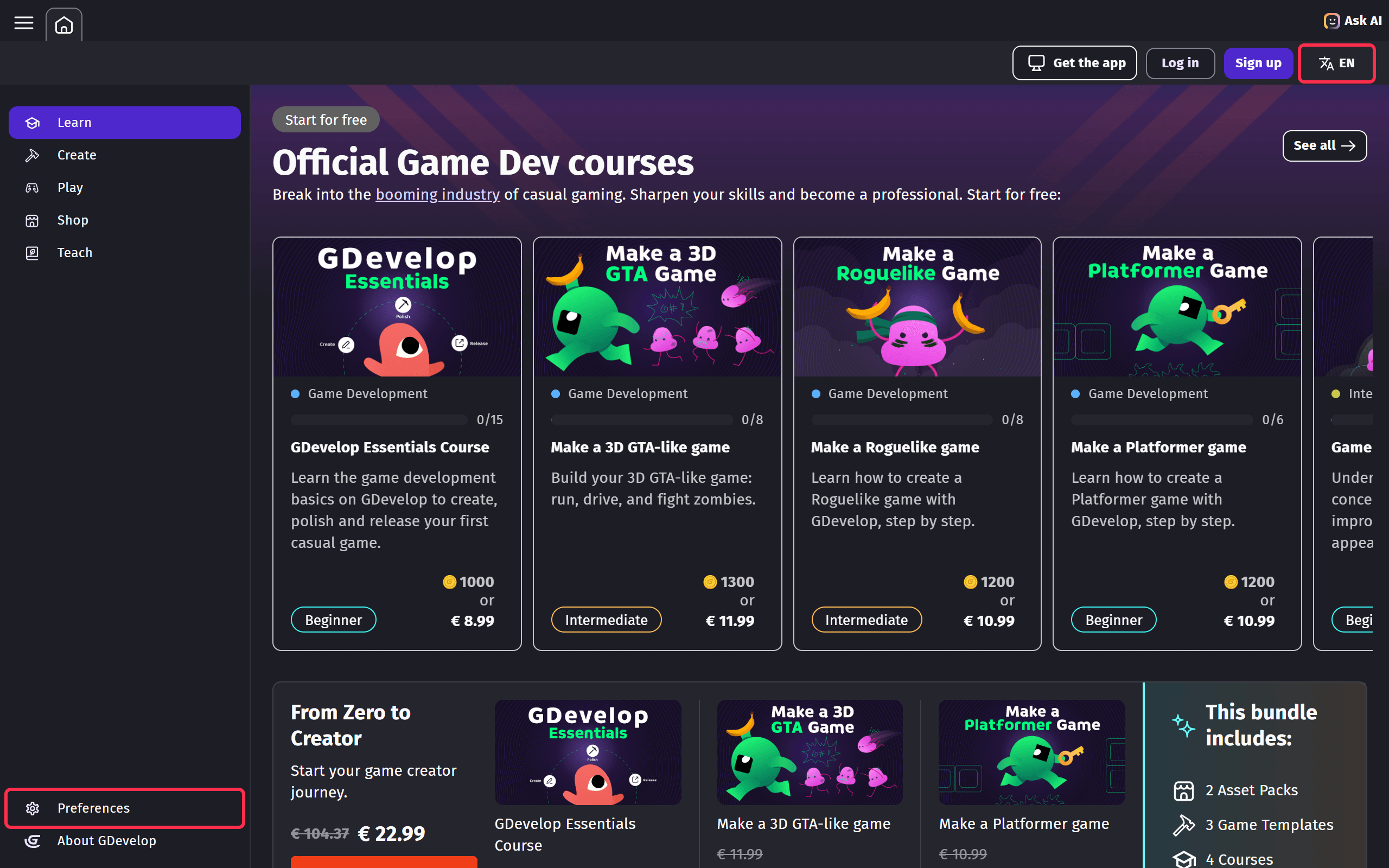
The button opens a dialog holding the same list as the preferences:
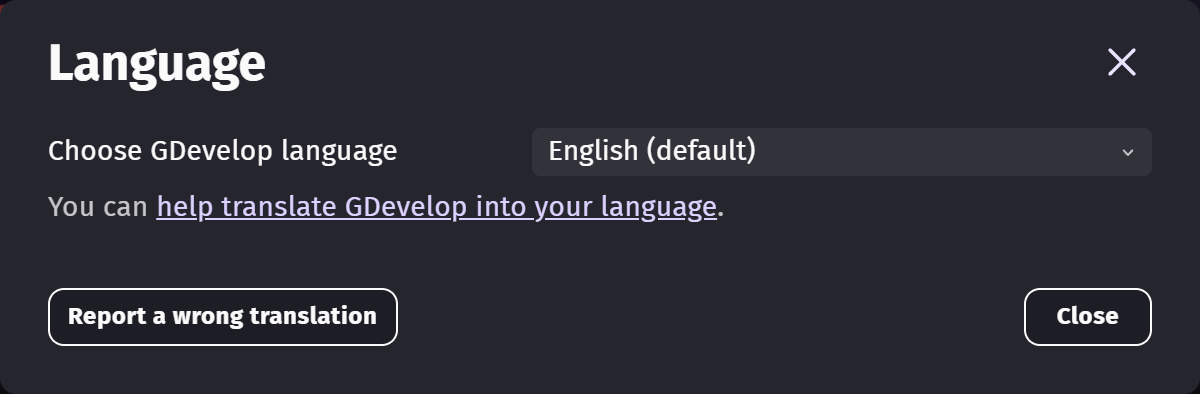
Next to each language, the list shows an estimate of how much of the editor is translated into it: a language below 100% displays the untranslated parts in English. Changing the language applies it immediately, without restarting GDevelop.
The translations are made by the community on Crowdin, and the dialog links to it: you can complete the language you use, or add one that is missing. If a translation exists but is wrong or confusing, Report a wrong translation opens the issue where these mistakes are collected.